Sun Feb 08, 2026 · 1276 words
Ever since stumbling on the fact that you can get a year of Google's Gemini for free as a student, I've been using it extensively for a lot of things. Most notably, I've been abusing its "Deep Research" mode like crazy.
For those in the unknown, it is an extremely powerful way to find something on The Great Internets. I use it extensively for finding apps, libraries, or even just book recommendations for further reading. The report it generates I couldn't give a rats ass about. It's just some AI slop report after all and there's little I hate more than overconfidently wrong and overly-wordy LLM slop. But the real and slightly hidden power is when you look at the sources and the "Thinking" steps ("Seven Thinking Steps" type vibe).
Instead of having to endlessly google keyword after keyword and looking through reddit posts trying to see what makes sense, I hand that part completely over to Gemini and have it nicely gather all links that are even just slightly relevant. Gemini finds me the needles in the haystack, but I'll take it from there and determine what is actually good and what is not.
To end this somewhat long preamble, this has now often been my approach for finding tools, libraries, or even interesting books to read.
Super Productivty
That is how I then stumbled upon Super Productivity, an insanely well-made open source and free todo-management app.
TL;DR: I use it for all my todos. End of blogpost.
But why?

In the past years, I've always used Google Tasks. I had the Tasks app on my phone, which allowed me to have a homescreen widget (iOS) to quickly see and add any todos I had. Or alternatively, I also added any (project) ideas I had for future me to hopefully implement someday.
You can create different tabs to slightly separate your todos, but at the end of the day, it's quite a basic way of managing todos. I am always trying to slightly optimize different things in my life, so there was always the looming question if this is really the best way to do it.
On my phone, I have the RSS reader app (Reeder) set up to show me posts from hacker news, lobste.rs, and my Github feed to maybe stumble upon cool articles or interesting projects. One morning while sipping my horribly failed latte art, I stumbled upon a really interesting blogpost.
My productivity app is a never-ending .txt file talks about how the author has been using a text file the past 14 years for his daily todos. A lil' too hardcore for me. But for me, the real gold of the article was one key point:
- Using a calendar for all todos and ideas.
Assign a date
Have a new todo or idea? Don't just throw it on an endless list of todos you can't be assed to complete. Instead, assign a date to the todo for when you want to work on it or even just think of it again.
To cut to the chase, I knew I needed to reform my todo management. After a little digging with big brother Gemini, I then stumbled upon Super Productivity. It supports a bunch of features to make it extremely easy to oversee a lot of todos. And it also supports keybinds and shortcuts for the poweruser addicts.
I've added it as my home website when I open my browser to always see my todos there and I also added it as a homescreen PWA on my phone to add ideas while I'm out and about.
Workflow for new todos
Whenever I remember I need to do something or I generally just have an idea, I follow these steps:
- Create a task and put a short description of what it is I wanna do. More details are better than too short and cryptic messages. If I see the todo a few weeks down the line and dunno what it's about, the effort of adding it was for nothing.
- Add a date for when I want to work on the task or generally just think about it again. I usually throw my todos a few days into the future when I think I have time again. I'll often look at my todos for the upcoming days in the "Planner" tab
and reorganize/spread them out a bit so my todos for a day are actually feasible. A shortcut for adding a date when creating a task is typing something like
@tmror@26feb. - Assign a project to the task. I currently have four projects (not including the default "Inbox"). The projects consist of "general ETH stuff", "general programming stuff", "VIS related stuff", and for bigger tasks with a lot of todos I might create a separate project (have one for ABR). Things not in those categories, like reminders for me to do Steuererklärung, I leave uncategorized, which implicitly places them into the separate "Inbox" project. A shortcut for adding a project is to type
+progor+eth. - Add an estimate of how long the task will take me. This helps a lot in gauging when and where I can fit this task into my day. It also helps me sometimes get over the bump of not wanting to work on a task I dislike, knowing that it only takes 20 minutes, so I might as well do it now. Adding
2.5hor5manywhere in the task creation text adds a time estimate. As a small tip, you will probably massively underestimate how long you take at tasks at first. No harm in over-estimating or refining the estimate later on. - Sometimes, if it's related to some article or requires a bit more information, I'll add the link as an attachment to the task and/or add some more details to the task in the notes section.
- Sync/save the changes so I don't lose them.
Workflow for getting into a working flow
When I open SUP, I'll be greeted with all the tasks I assigned myself for today. Usually, I'll start with the task I vibe most with, while maybe reassigning some tasks to other days if I know I won't be working on those today anyway.
I've also been trying to use the in-app time tracking feature so I can better measure how long I actually take to complete tasks. This has made me realize that I massively misjudge how long I take for tasks, but slowly my estimates are starting to be more realistic.
At the end of the day, I'll try to use the "Finish Day" feature, which cleans up old tasks, as well as allows me to see what's coming up the next day.
Programming TODOs Example
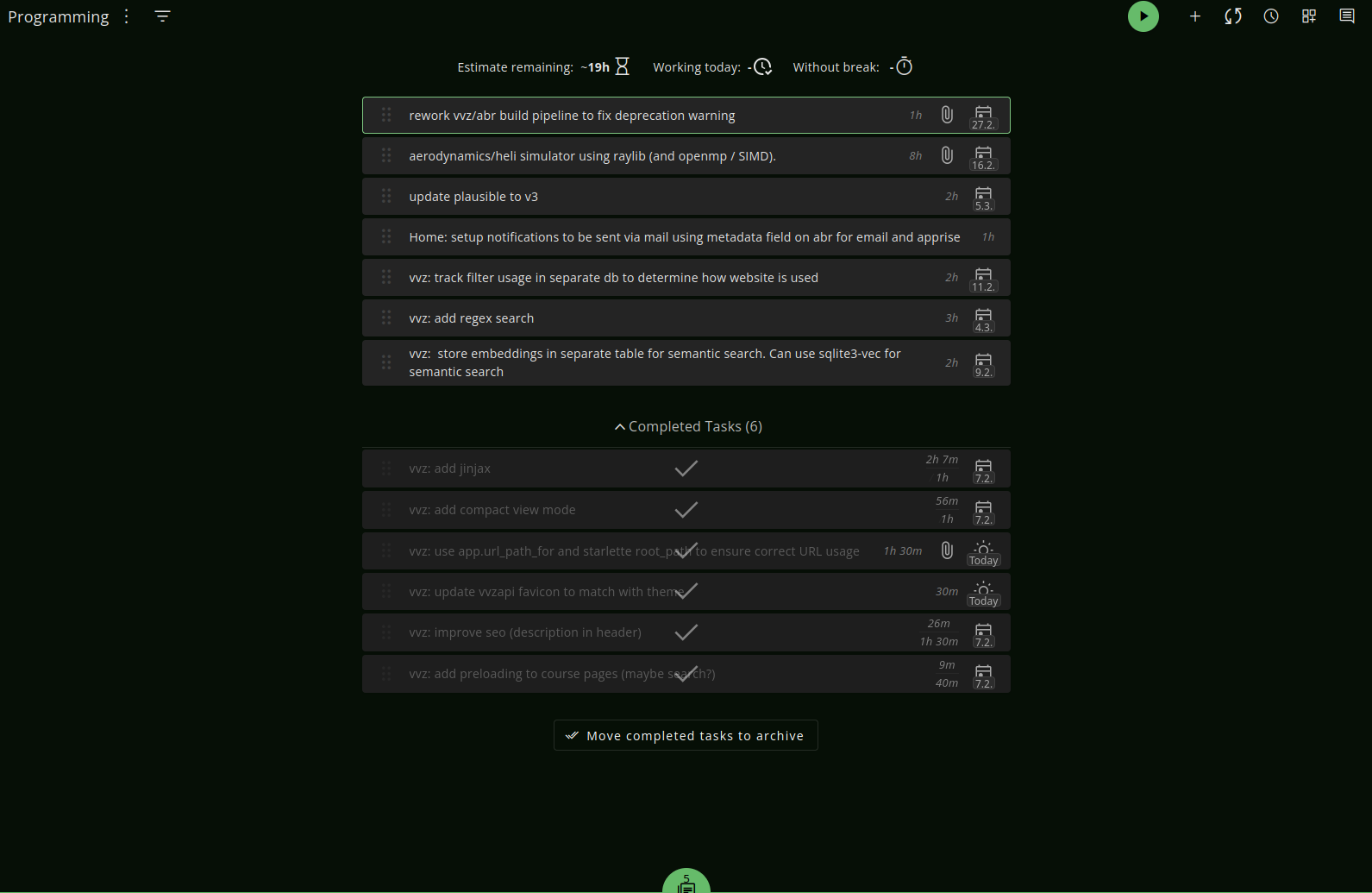
For example, these are some todos I have for my programming project. I also have five todos in the backlog (at the very botom) which are just generally ideas that I'll eventually and maybe do, but don't have a date fixed for, nor do I actually expect to do them anytime soon.
I don't really make use of tags. I find it easier to just maybe add a small prefix like (vvz: for VVZ API), which is just enough for me to easily identify what programming project the idea is for.
Finito
Thanks for reading another one of my rambles. Mainly just wanted to share my discovery of the goated SUP with you. Hope I may have inspired you to check out Super Productivity (or maybe the Deep Research mode on Gemini).